From setting up a school to a parent paying fees
MSMS is built so that nobody is left guessing. Here is the order to set things up, and exactly what happens to a fee from your desk to the parent's phone.
Set up your school — in this order
Name, contacts and currency appear on invoices, report cards, the website and the sign-in page.
Attendance, fees, exams and timetables are all recorded against the current term.
Or import them for your country in one go with Academic Setup.
Each teacher gets a login. Teachers only enter attendance and results for the classes and subjects they are assigned to.
Add students one by one or import a spreadsheet. Add the parent on the same form: parents get a login and are linked to all their children automatically.
Tuition, PTA levy, uniform… and what each class owes for the term. Nobody is billed yet.
The fee workflow
- Admin: Fee Structure → choose class and term → Add Fee Item for each fee.
- Admin (optional): switch on the family discount for families with several children.
- Admin: press Generate invoices. Every active student in the class gets an invoice; parents are alerted.
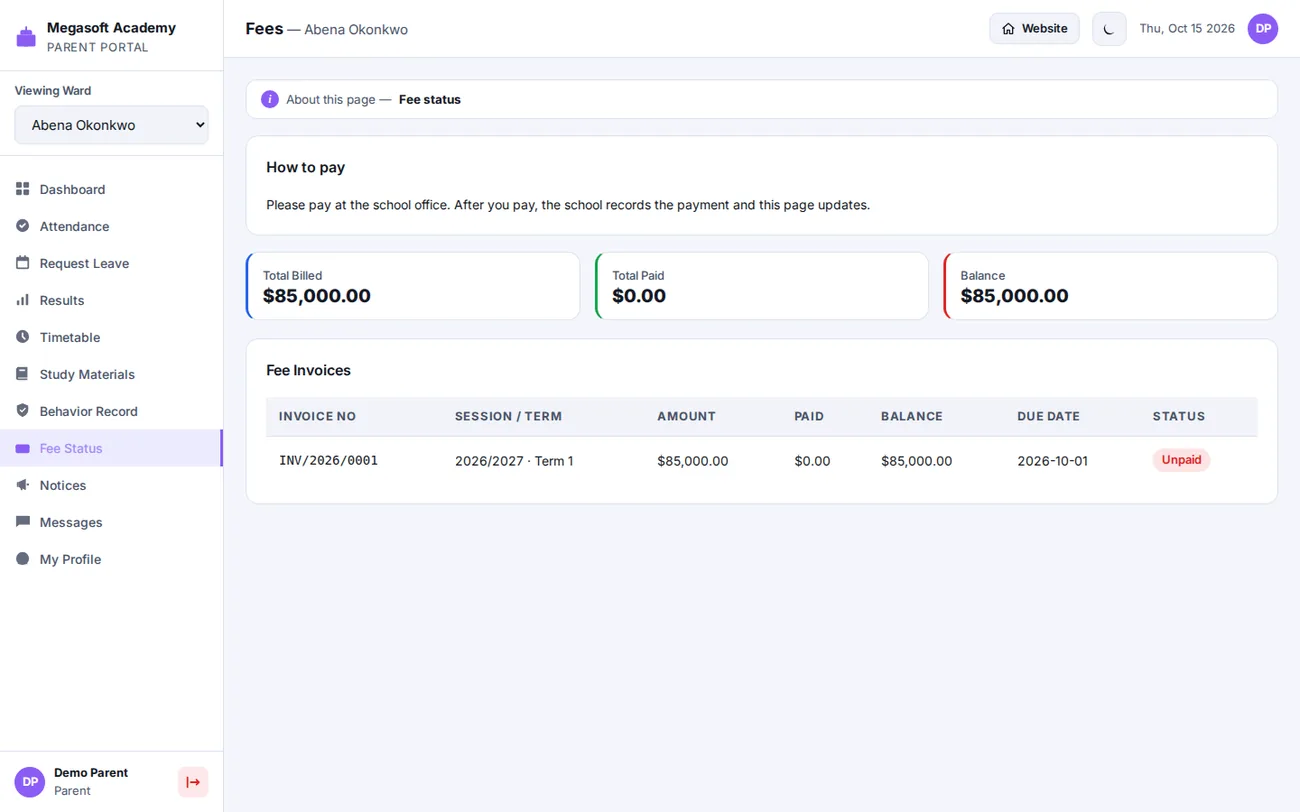
- Parent / student: Fee Status shows each invoice, the balance and how to pay. They pay online or by mobile money, or at the school.
- Admin: online payments are recorded automatically after the provider confirms them; mobile-money payments are confirmed in one click; cash and bank payments are recorded on the Fees page.
Parents, children and logins
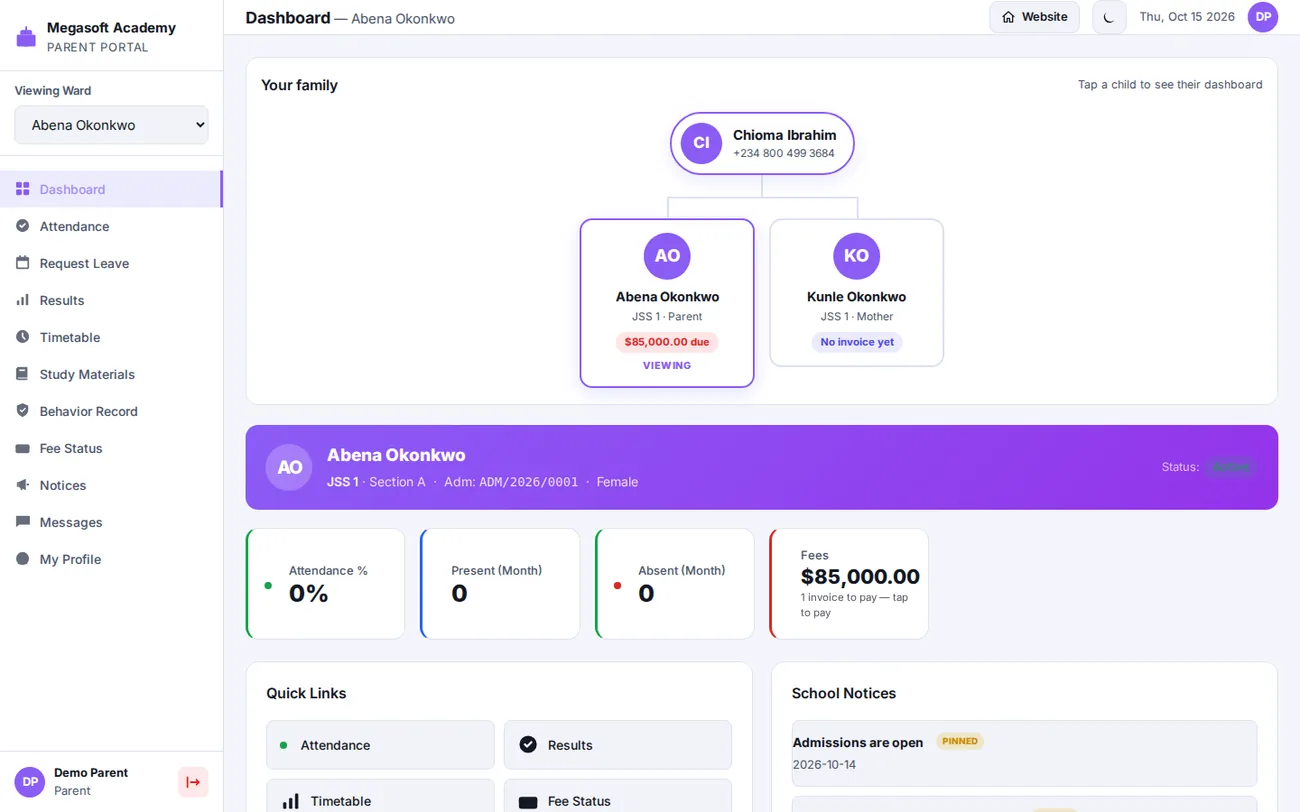
Each parent has one login for all their children. When you add a student, MSMS looks for an existing parent with the same email or phone number and links the new child to them — no second login. The parent dashboard shows a family tree: the parent at the top, each child below with their class and any amount due. Tap a child to switch to their dashboard.
Questions
Why can't the parent see the fees I created?
Creating a fee amount only records what a class owes. Invoices — the thing parents and students see — are created when you press Generate invoices on the Fee Structure page. Check also that the student is in that class and is active.
What if a student joins after invoices were generated?
Press Generate invoices again. Students who already have an invoice are skipped, so only the new student is billed.
Can parents pay part of an invoice?
Yes. Parents can pay the full balance or part of it, and you can also set up an instalment plan for an invoice.
How do I record a payment made at the school office?
Open the Fees page, find the invoice and record the amount, date and method. The parent's balance updates immediately.
